Getting started
Find your way around Shield AdBlock
Find the toolbar popup, everyday settings, website exceptions, and recovery tools.
Quick answer
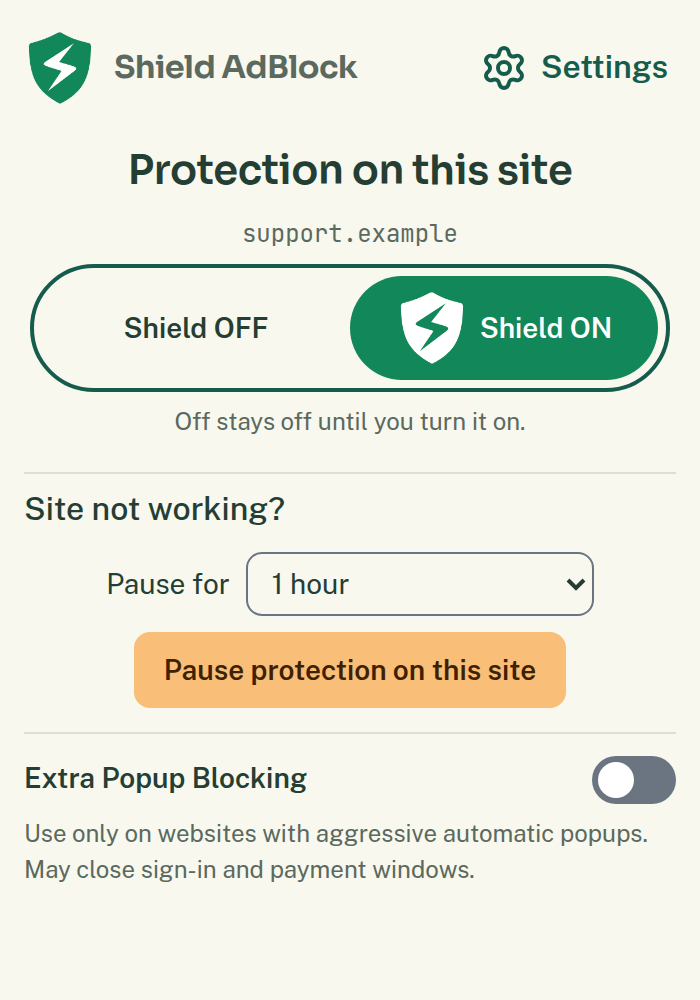
Use the toolbar popup for the website you are viewing. Use Settings for choices that apply across websites and for a list of saved website exceptions. If a page stops working, Site not working? opens a recovery page for that tab.
The popup’s main site switch and the Settings protection switch have different scopes. The popup changes the named website. Settings can turn protection off everywhere. Read the status beside the control before changing it.
Where to find it
Open your browser’s extensions menu and choose Shield AdBlock. In the popup, choose Settings. The English Settings page has Protection and Websites as its main destinations, with Backup and Help & About available as tools.
What to do
- Check the hostname in the popup before changing site protection.
- Use Pause protection on this site for a temporary test. Its separate duration choice starts at one hour.
- Open More for this site for ad-hiding and popup options when available.
- Choose Settings → Protection to review ad and tracker blocking, Cookie Choices, popup blocking, and other protection options.
- Choose Websites to review full protection pauses, ad-hiding pauses, and Extra Popup Blocking saved for particular websites.
- Choose Backup when you want to save or restore your setup.
- Choose Help & About for product information, privacy information, and support.
Advanced Settings reveals tools for added blocking sources, your rules, and extra troubleshooting. It does not automatically mean stronger blocking. Developer Mode exposes extra details and permits less secure or local source links; ordinary browsing does not require it.
If a button or form disappears, open Site not working? on the affected tab. Show one hidden control can help restore an eligible control without pausing all protection. This recovery tool is limited to the controls it can identify.
What should happen
The popup should follow the active website. A browser settings page or another restricted page may show No active site. Settings changes should show success or an error; allow a change to finish before trying another.
Undo a change
Return to the same control to restore its previous setting, then reload affected websites. Full site pauses and ad-hiding pauses are separate entries in Websites. Resuming one does not necessarily remove the other.
For the scope and duration differences, read pause and resume protection. For a page failure, follow website not working and change one thing at a time.
If that does not work
If Settings will not open, note the displayed error. If a recovery session has ended, return to the affected tab and open Site not working? again so the tool has the right website context.
Related help
Contact support and share a report if you need more help. You can also find the support contact details.