Everyday protection
Choose your protection settings
Understand the everyday protection controls and the scope of each change.
Quick answer
The choices under Settings → Protection apply across websites, subject to saved website exceptions and browser access. The default setup is ready for ordinary browsing. You can change one setting when you have a specific reason, then reload the affected page to check the result.
The main Protection everywhere switch turns protection on or off on all websites. For a problem on one website, start with a temporary site pause instead.
Where to find it
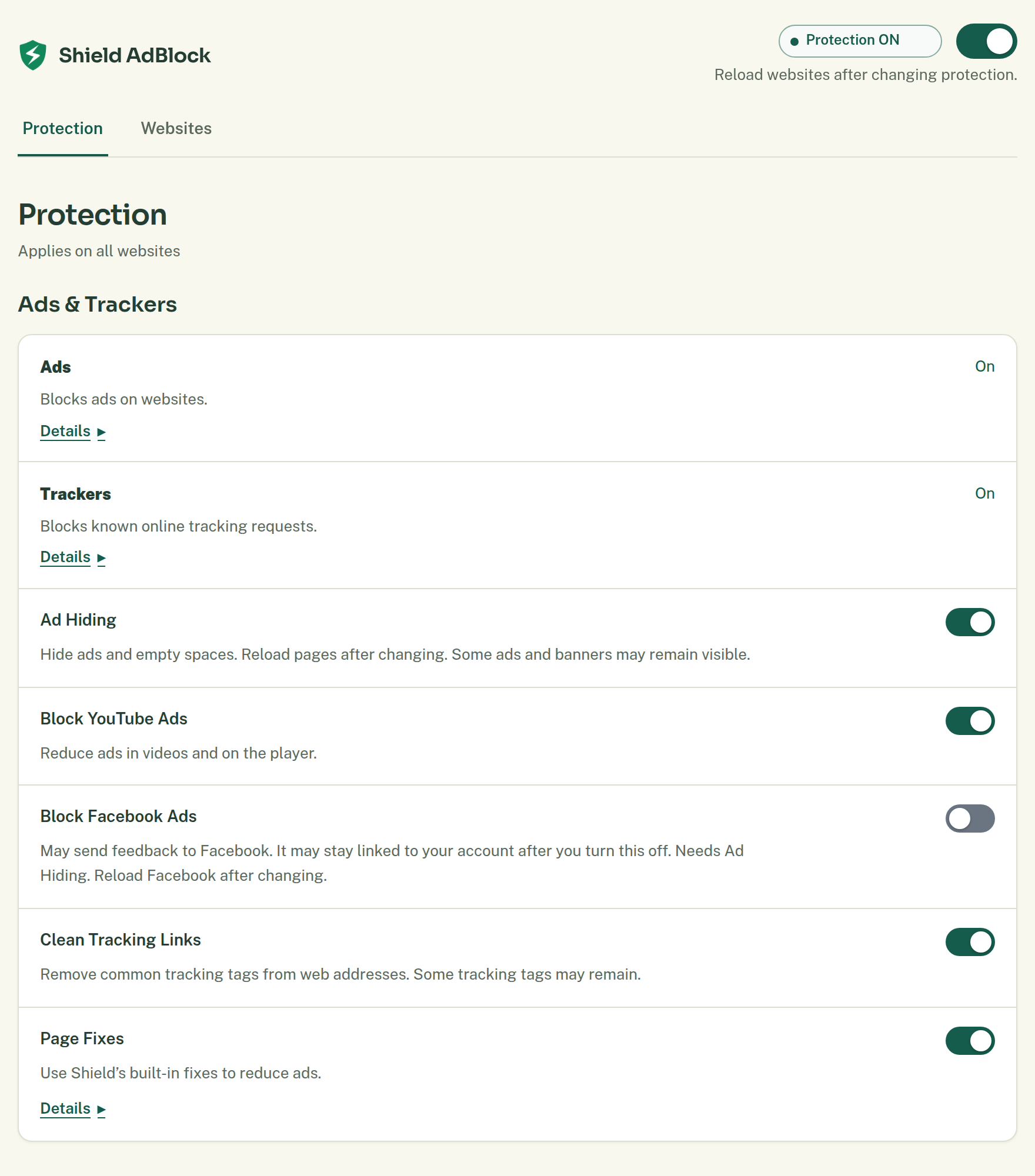
Open Shield’s toolbar popup, choose Settings, then Protection. Use Details where offered to review the sources or limits behind an option.
What to do
Review these controls before changing them:
- Ads and Trackers manage the included blocking sources. Tracker protection blocks known tracking requests; it cannot promise to prevent every form of tracking.
- Ad Hiding removes matching page elements and empty spaces. Turning it off does not itself turn off request blocking.
- Block YouTube Ads reduces ads in videos and on the player. It is a separate control from Ad Hiding.
- Clean Tracking Links removes common tracking tags from web addresses. Some tags may remain.
- Page Fixes uses Shield’s built-in fixes to reduce ads and disruptive page behavior. Some embedded content may be unaffected.
- Popup Blocking blocks unwanted popups. Some unwanted windows or tabs may still open.
- Cookie Choices makes your selected choice on supported cookie banners. Hide Cookie Banners hides banners without making a consent choice. Read the cookie settings guide before changing them.
- Block Facebook Ads is optional on Chrome and Edge, unavailable in the Firefox package, and off by default. It needs Ad Hiding and may send feedback to Facebook that remains linked to your account after you switch it off. Reload Facebook after changing it.
- Change the single control relevant to your goal.
- Wait for the change to finish.
- Reload the website.
- Repeat the action or check the content you wanted to change.
What should happen
A successful save records the setting; it does not guarantee every ad disappears. Browser access, site exceptions, and source coverage can affect the result. Bundled sources update with Shield. Optional language sources download only after you choose to add them.
Advanced Settings reveals added-source and rule tools. Developer Mode is for extra troubleshooting and also allows less secure or local source links. Neither is required for the default setup. Shield AdBlock 1.0.2 omits scriptlets from added sources and from rules you write. Bundled Page Fixes remain their own setting.
Undo a change
Restore the previous setting and reload affected pages. Turning off Block Facebook Ads or changing Cookie Choices does not reverse actions already saved by those websites.
If that does not work
If you still see ads, follow ads still appear. If a page breaks, use website not working to isolate the change before disabling more protection.
Related help
Contact support and share a report if you need more help. You can also find the support contact details.